In short
As of November 2026, you can browse the Claude connectors directory from Customize > Connectors, connect a listing and sign in, then add Tracy AI Interviewer by its address to interview applicants from a Claude chat.
The Verified and Community labels show how far Anthropic looked at a listing and are not a security audit, so check what a connector can do before it touches candidate data.
Tracy interviews each applicant on video, and a person decides. The first 3 results are free.
The Claude connectors directory is the one place to find the services Claude can connect to: calendars, documents, issue trackers and, for a talent team, the tools that hold applicants. This guide covers how to browse it and connect a connector, what the labels mean, what changes on a Team plan and what to check before a connector sees candidate data. It also shows what to do when the tool you need is not listed. For the difference between a connector and an MCP server, see Claude connectors vs MCP.
What is the Claude connectors directory?
Anthropic's catalog lists MCP servers for claude.ai, Claude Desktop, Claude Mobile, Claude Code and Cowork alike, some from Anthropic and many from outside developers. Listings are ordered by usage, much like an app store, and Claude can suggest a listed connector inside a chat when it fits the task you gave it.
Behind each listing sits an MCP server that the service runs, and the connector is Claude's side of that link. If the term is new, what an MCP server is covers it in a page.
How do you browse and connect connectors?
You can open the directory at claude.ai/customize/connectors. Then:
- In the desktop app, select Customize, then Connectors. If you see Discover, select it.
- Search for a service by name or look through the categories, then open its listing.
- Select Connect to Claude or Add, whichever the page shows. Some connectors first ask for a server URL or a region.
- Sign in to the service and review the access Claude asks for.
- Check that the connector now appears in your connectors list.
Connecting does not switch it on everywhere. In each chat, select + in the message box and use the toggle under Connectors to allow or stop Claude from using it. When Claude wants to use a tool it can ask first: Allow once, or Always allow for that tool.
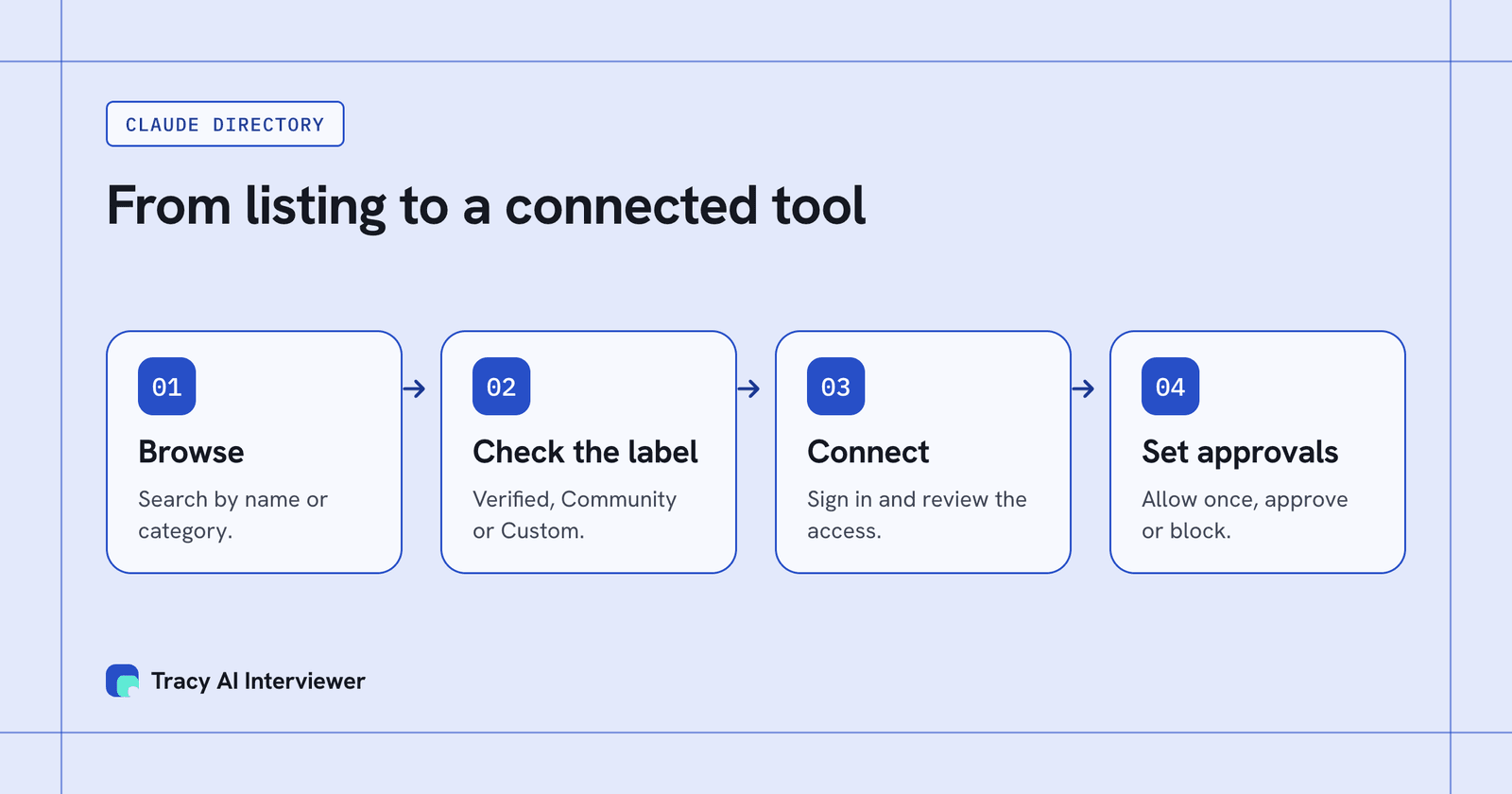
Browse, check the label, connect, then set approvals.
What do the Verified, Community and Custom labels mean?
Each listing shows how far Anthropic reviewed it. The directory's verification page puts it this way.
| Label | Who built it | What Anthropic did |
|---|---|---|
| Verified | Anthropic or a third party | Tested the tools for quality and compatibility; shows a checkmark |
| Community | A third-party developer | Screened it before listing, without an in-depth review |
| Custom | You | Nothing: you added it yourself by address |
What each label means in the Claude directory, from Anthropic's verification page, read 22 November 2026.
A checkmark is not a security audit and promises nothing about how the connector will perform, Anthropic's page adds, and the developer keeps control of the tools, so they can change after review.
Which connectors does the directory list?
The list changes as developers submit and update servers, so the live directory is the place to look. Search by service name or browse the categories, and open a listing to see its label. A service that is not listed can still be added by its address, covered below.
What changes on a Team or Enterprise plan?
On Team and Enterprise, an Owner switches a connector on for the whole organization and each member then signs in with their own account. Owners find the directory under Organization settings > Connectors. A member without that permission sees Request where the connect button would be, and the request lands with the Owners, who approve it or dismiss it.
To try a connector alone first, an Owner picks Connect just for me instead of Connect for your team. Admin controls for remote and local connectors appear on Anthropic's Team pricing page, so a talent team can hold to a short approved list.
What to check before a connector sees candidate data
Anthropic's verification page gives six points that apply to any connector built by someone other than Anthropic: connect only to developers and organizations you trust; the developer controls the tools and can change them at any time; Anthropic does not run a third-party connector's servers or control how it handles your data; review the permission scopes at sign-in; stay aware of prompt injection; and monitor for unexpected changes in tool behavior.
Two more habits for candidate data:
- Set tools that can change data to Needs approval, or Blocked, in the connector's Tool permissions, which Anthropic's getting-started page describes.
- Ask the vendor for its security documents before applicant records go in.
How do you add a tool that is not in the directory?
The directory is optional. Anthropic says directory connectors and custom connectors use the same technology, so with a server's address you can add it as a custom connector whether or not it is listed. Anthropic has not reviewed a custom connector, so the trust checks above matter more.
Tracy AI Interviewer is added this way. In Claude, open Customize > Connectors, choose Add custom connector, call it Tracy AI Interviewer and paste https://tracyinterview.ai/mcp. Select Connect, sign in to Tracy and allow it. Connecting Tracy to Claude, step by step has the full walk-through, and how to add MCP to Claude covers any other server.
On your connectors page Claude lists Tracy's tools in two groups, 7 read-only and 6 write or delete, each set to Needs approval, as the real screenshot in Tracy's Claude guide (9 November 2026) shows. Claude shows a preview and waits for your approval before it creates an interview, invites anyone or turns the public link on. A fresh interview comes with its public link already on, open to anyone holding it for up to 20 people over 14 days, and with no one invited yet; the host can switch the link off. For a security review, Tracy holds a SOC 2 Type II attestation, and you can ask for the report by email at hello@tracyinterview.ai.
What a hiring team gets from the Tracy connector
For a volume hiring team the connected tool matters more than the list. You tell Claude the role and whom to invite, and a draft interview comes back built from the job description, open to your edits. An applicant needs only a browser link, with no sign-up, and the join screen warns up front that the call is recorded and transcribed. No one books a slot, because an applicant starts on click, at any hour, so a person who applies late on a Sunday does not wait for Monday's calendar. Tracy lets an answer finish, then asks about whatever was left out, in the applicant's own line of work.
Ask the chat for results and it lists every answer person by person, next to the result fields and a ready note for the applicant tracking system. The decision stays with your reviewer, who works from the evidence; the report does not score or rank anyone. The excerpt below is invented and shows the shape of a warehouse associate screen:
| Result field | Answer | Evidence |
|---|---|---|
| Scanner experience | 2 years | Q1, at 01:10: "Scanners for two years. No forklift licence yet." |
| Follow-up asked | Would you be willing to train for it? | After Q1 |
| Lifting 20 kilograms repeatedly | Yes, daily at the last job | Q2, at 02:30: "Yes, every day at my last job." |
Invented sample data.
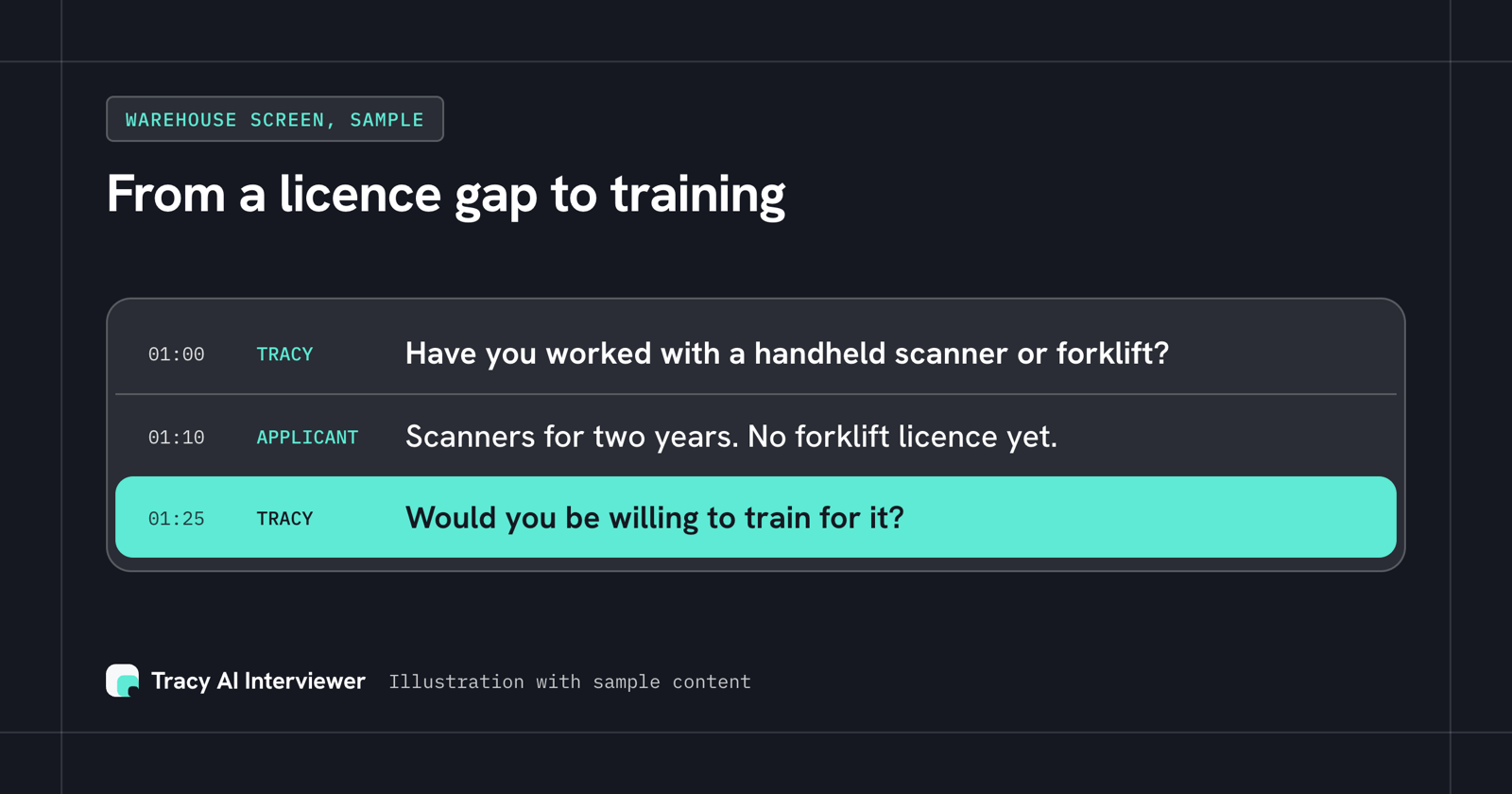
The follow-up picks up the gap in the answer.
How do you submit a connector to the Claude directory?
If you build an MCP server and want it listed, you submit it in the developer portal at claude.ai/directory/manage. Anyone on a paid Claude plan can submit, and on Team and Enterprise an Owner submits. Anthropic scans a submission automatically for policy compliance and, by default, lists it as a Community connector. There is no separate application for the Verified label: Anthropic may escalate listings flagged as highly useful to a Verified review, and that is assessed automatically.
If a provider later changes the endpoint behind its listing, your existing connection keeps working but shows as custom. Adding it again from the directory without removing the original gives you two connections, so remove it first.
Which path fits you?
- Choosing connectors for a team: best Claude connectors for business.
- Wanting the vocabulary straight: Claude connectors vs MCP and interactive connectors.
- Hiring through Claude: recruiting MCP servers.
- Connecting Tracy: connecting Tracy to Claude, step by step.
Common questions
What is the Claude connectors directory?
How do I browse and connect connectors?
Does a Verified connector mean it is safe?
Can I use a tool that is not in the directory?
Add Tracy to Claude and interview applicants
Add Tracy by its address, name the role and approve the preview first, before anyone gets an invite. First 3 results free.
Try it free (opens in a new tab) Book a demo (opens in a new tab)
Your first 3 results are free. No card needed.
Sources
- Anthropic, Connectors directory, retrieved 22 Nov 2026.
- Anthropic, Connector verification, retrieved 22 Nov 2026.
- Anthropic, Get started with connectors, retrieved 22 Nov 2026.
- Anthropic, Claude pricing, retrieved 22 Nov 2026.
- Tracy AI Interviewer, Connect, retrieved 15 Nov 2026.