Add Tracy at Qode to Claude
Claude connects to Tracy at Qode as a custom connector, so you can set up an interview and read its results by asking for them in a chat. Claude Desktop and claude.ai share one set of steps; Claude Code has its own.
Quick start
Two ways to add Tracy at Qode to Claude. Jump to the full steps for the one you use:
In the app or the browser
Then go to Customize > Connectors > Add custom connector and paste the address under Server address below.
In a terminal
claude mcp add --transport http tracy-at-qode https://tracyinterview.ai/mcp
Then start Claude Code and run /mcp to sign in.
A first prompt to try
Once it is connected, start a new chat and send:
Set up a customer discovery interview for people who cancelled in the last month, then give me the public link.
Server address
Paste this wherever Claude asks for a server URL. If it asks for a name, use Tracy at Qode.
https://tracyinterview.ai/mcpClaude Desktop and claude.ai
Custom connectors work on the Free, Pro, Max, Team and Enterprise plans. Claude Desktop runs on your computer, but a remote connector is set up through your Claude account, so the steps are the same in the app and in the browser. The Free plan allows one custom connector.
On Free, Pro and Max
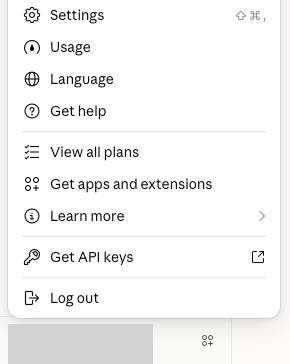
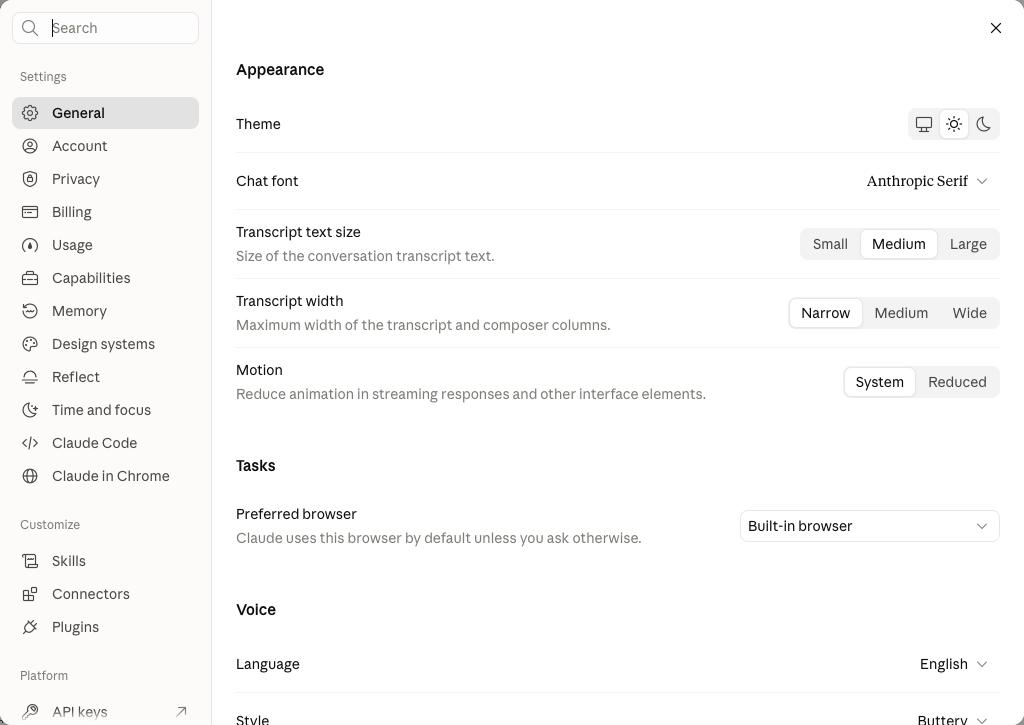
- Open Settings > Connectors (or Customize > Connectors, the same list). Click your name at the bottom left, choose Settings, then select Connectors in the Settings list.
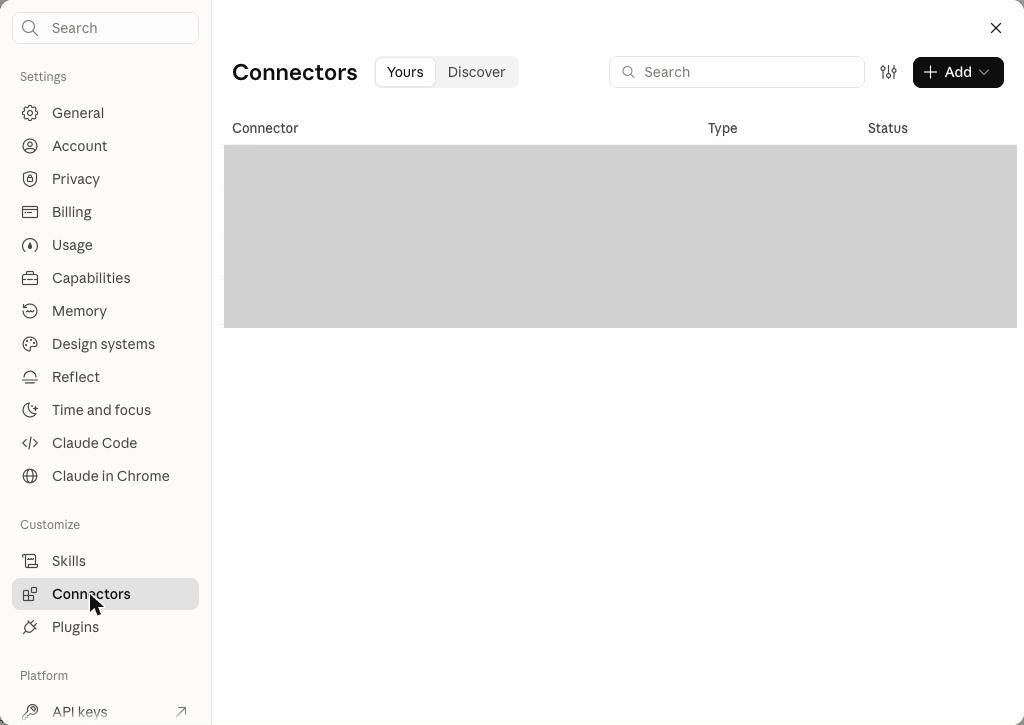
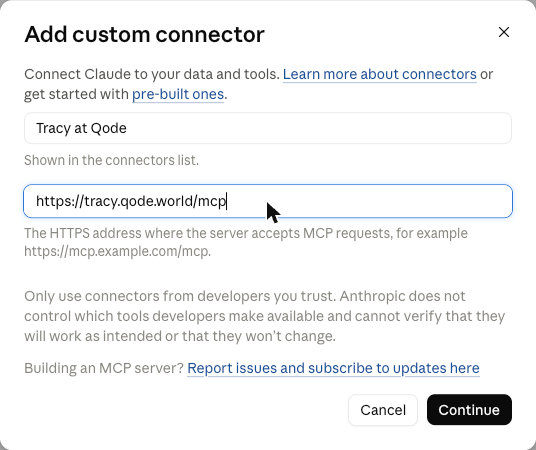
- Click + Add, then Add custom connector.

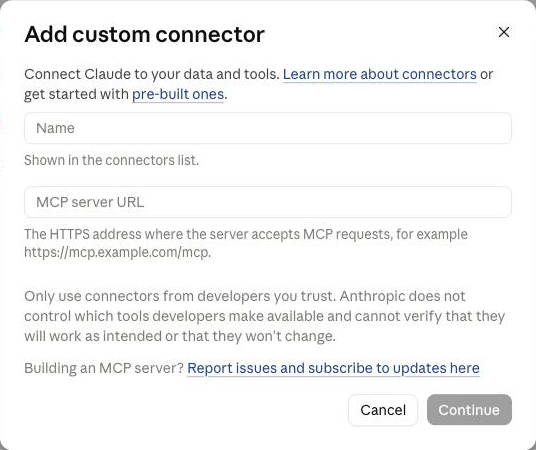
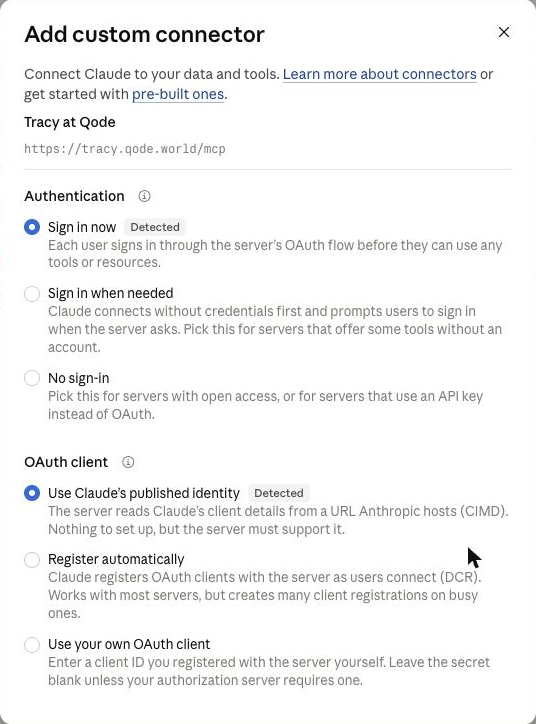
- Name it Tracy at Qode and paste the server address. Click Continue, then leave the detected defaults and click Add.
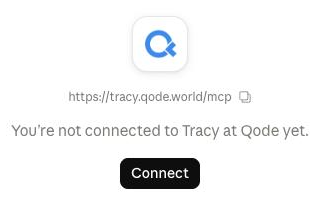
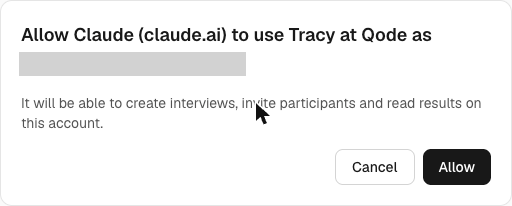
- Click Connect, then Allow on the Tracy at Qode screen.
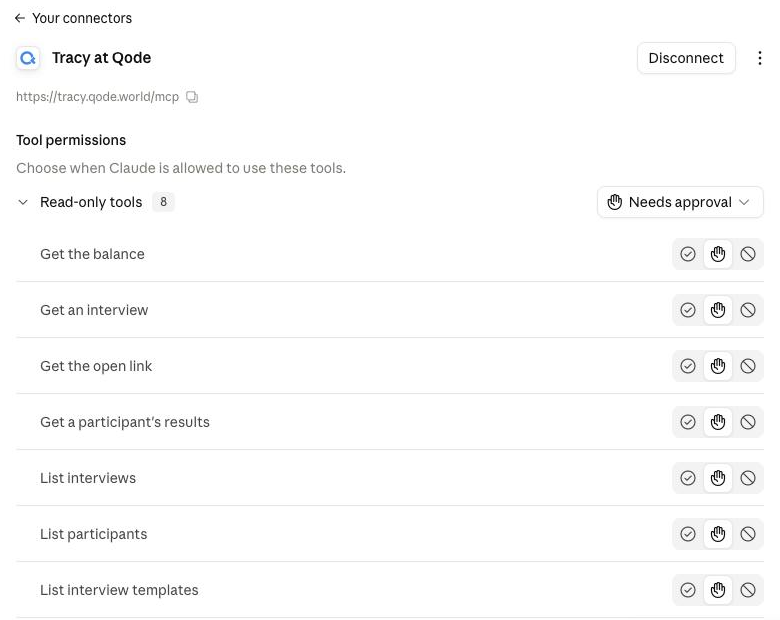
On Team and Enterprise, an owner adds it first
- An owner opens Organization settings > Connectors, clicks Add, hovers over Custom and chooses Web.
- The owner names it Tracy at Qode, pastes the server address and clicks Add.
- Each member then opens Customize > Connectors, finds Tracy at Qode and clicks Connect.
Claude Code
Claude Code adds a remote server from the command line, then signs in from inside a session.
- In a terminal, run:
claude mcp add --transport http tracy-at-qode https://tracyinterview.ai/mcp
- Start Claude Code and run
/mcp, then follow the steps in your browser to sign in to Tracy at Qode.
Add --scope user to the command to have it in every project, not just the current one.
Sign in and approve
Claude sends you to Tracy at Qode to sign in and approve it. It asks for one permission, named tracy, and acts only on your own account. What that covers is on the privacy page.
Check it worked
- Open your Tracy at Qode account and find Connected AI apps. The app is listed, with the time you connected it under Connected.
- In Claude Desktop and claude.ai, start a new chat, select the + button at the lower left, then Connectors, and make sure Tracy at Qode is switched on for that conversation. In Claude Code, run
claude mcp list: tracy-at-qode should read Connected. Needs authentication means the sign-in is not done. - Send the first prompt above.
- Tracy at Qode answers with a draft: the title, the questions and the result fields. Nothing is created until you approve the draft, so read it, ask for changes and say yes when it is right.
If it does not work
- Tracy at Qode is not in your connectors. On Team and Enterprise, an owner adds it first, under Organization settings > Connectors. On Enterprise that can also be someone whose custom role includes Manage access to Libraries. Ask them, then connect it yourself. The Free plan allows one custom connector.
- The sign-in did not open or was not finished. In Claude Desktop and claude.ai, open Customize > Connectors, find Tracy at Qode and click Connect again. In Claude Code, run
/mcpagain and follow the steps in your browser; if the browser does not open, copy the URL Claude Code shows and open it yourself. If Claude is not under Connected AI apps in your account, the sign-in was not finished. - The connector is off in the chat. In Claude Desktop and claude.ai, select the + button at the lower left of the chat, then Connectors, and switch Tracy at Qode on for that conversation.
- Access was removed. If you revoked Claude under Connected AI apps, it stopped at once. Connect it again with the steps above. In Claude Code, open
/mcpand select Re-authenticate on tracy-at-qode.
Still stuck? Write to support.
Remove access
To cut Claude off, open your account, find Connected AI apps and revoke it. It stops at once, and you can connect it again later. Stuck? Write to support.