Add Tracy at Qode to ChatGPT
Install Tracy at Qode in ChatGPT, then set up an interview and read its results by asking for them in a chat.
Install it from ChatGPT Plugins
- Open Tracy at Qode in ChatGPT. If the link does not open, go to ChatGPT Plugins and search for Tracy at Qode by name.
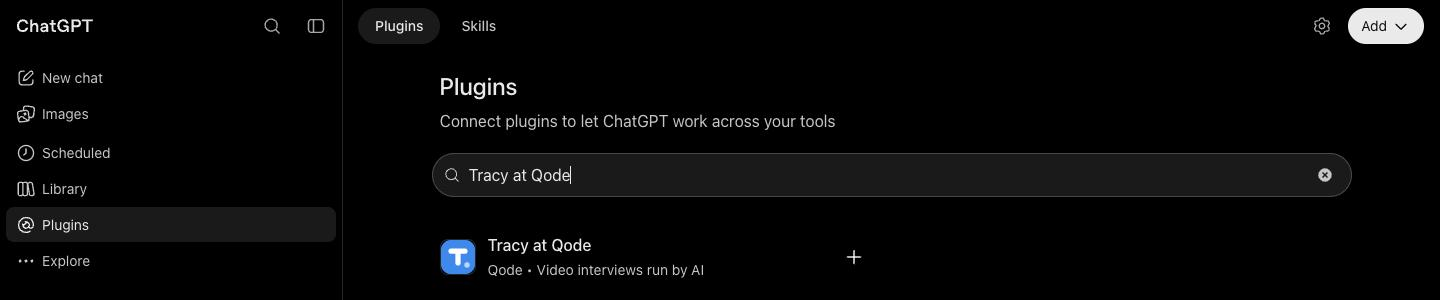
- Open it and install it with the Install plugin button.


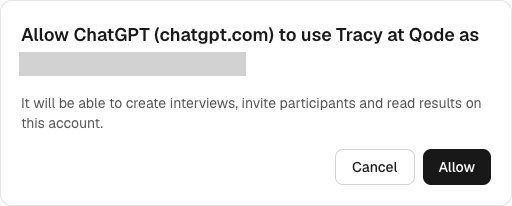
- When ChatGPT opens the Tracy at Qode sign-in, finish it there and click Allow to approve access.
- Start a new conversation, type
@in the prompt box and select Tracy at Qode. Send one of the starter prompts below, then review the draft.

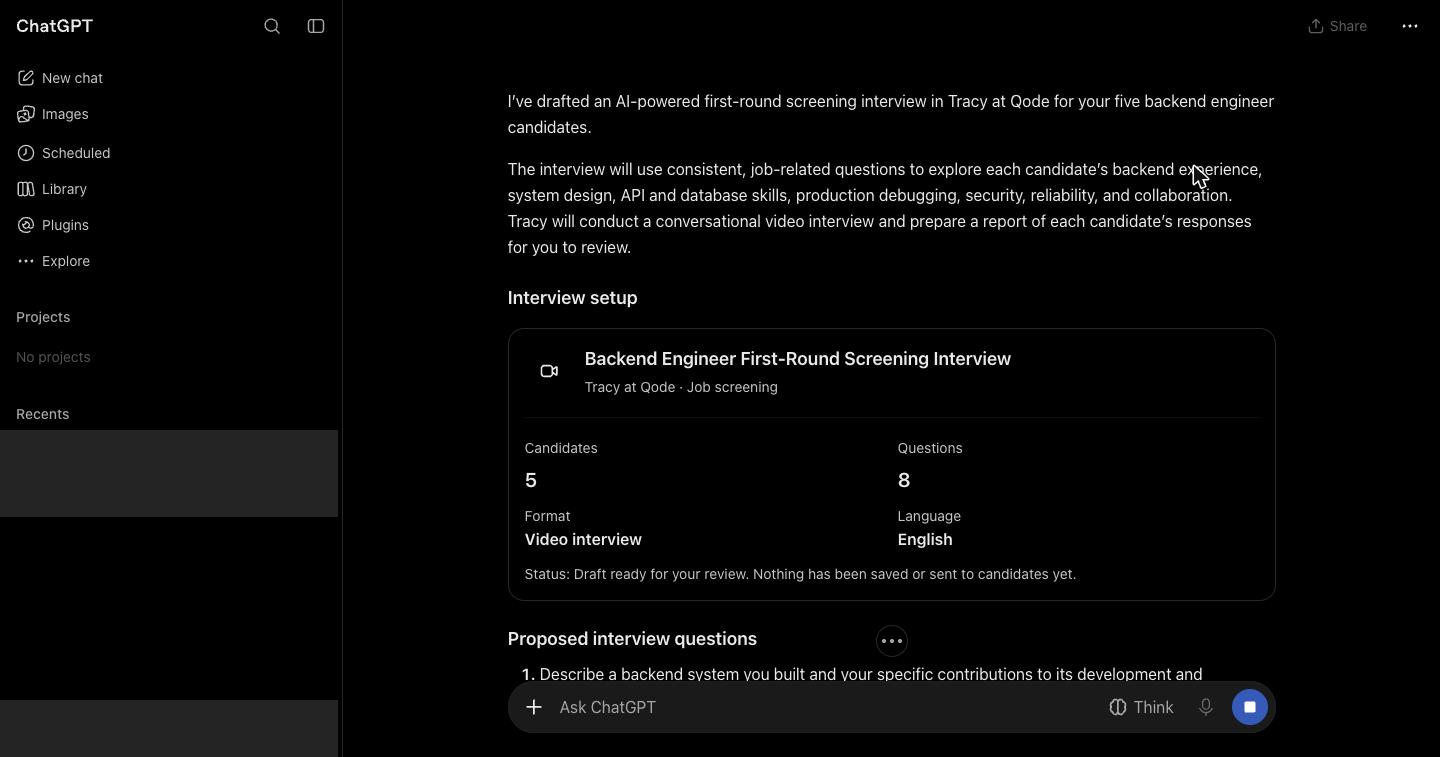
Set up an English video interview to screen 5 candidates for a backend engineer role.
Draft an English video interview to check references for a designer I want to hire.
Let me try a practice video interview first, so I can see what my candidates will go through.
An audio interview needs a microphone and no camera. Interviews run in nine languages.
Advanced: add it as a custom MCP server
Use these steps if you cannot find Tracy at Qode in ChatGPT Plugins, or you want to add it yourself as a custom MCP server.
Server address
Paste this as the server URL. When ChatGPT asks for a name, use Tracy at Qode.
https://tracyinterview.ai/mcpBefore you start
- Use ChatGPT on the web.
- Account and workspace policies apply to adding and using custom MCP servers. On a work or school workspace, an admin may need to allow them first.
- If you do not see Add custom MCP server, turn on Developer mode in your ChatGPT settings.
- ChatGPT has used different names for these over time, including connectors and apps. OpenAI's current guide calls the result a plugin, and so do the steps below.
Add the connector
- Go to ChatGPT Plugins.
- Select the plus button, then Add custom MCP server.
- Enter a name, Tracy at Qode, and paste the server address as the Server URL.
- For Authentication, choose OAuth.
- Review the risk warning and select I understand and want to continue.
- Select Create as a plugin.
- Install the plugin, then start a new conversation. When ChatGPT opens the Tracy at Qode sign-in, finish it there and approve access.
OpenAI's own steps are in its guide to connecting a custom MCP server.
Check it worked
- Open your Tracy at Qode account and find Connected AI apps. The app is listed, with the time you connected it under Connected.
- Start a new conversation, type
@in the prompt box and select the Tracy at Qode plugin. - Send the first prompt above.
- Tracy at Qode answers with a draft: the title, the questions and the result fields. Nothing is created until you approve the draft, so read it, ask for changes and say yes when it is right.
If it does not work
- You cannot add the plugin. Account and workspace policies apply to adding and using custom MCP servers. On a work or school workspace, ask whoever manages it to allow them, and check Developer mode under Before you start.
- The sign-in did not open or was not finished. Start a new conversation, type
@in the prompt box, select the Tracy at Qode plugin and finish the sign-in when ChatGPT opens it. If it still does not open, add the plugin again with the steps above, with OAuth as the Authentication. If ChatGPT is not under Connected AI apps in your account, the sign-in was not finished. - The chat is not using the plugin. Start a new conversation, type
@in the prompt box, select the Tracy at Qode plugin and send the first prompt again. - Access was removed. If you revoked ChatGPT under Connected AI apps, it stopped at once. Connecting it again means signing in and approving access once more. If ChatGPT does not open the sign-in, add the plugin again with the steps above.
Still stuck? Write to support.
Sign in, and remove access
ChatGPT asks for one permission, named tracy, and acts only on your own account. What that covers is on the privacy page. To cut ChatGPT off, open your account, find Connected AI apps and revoke it. Stuck? Write to support.