Add Tracy at Qode to Mistral Vibe
Mistral Vibe (formerly Le Chat) connects to Tracy at Qode as a custom MCP connector, so you can set up an interview by asking for it in a chat.
Who can add it
Every Mistral plan can, the free plan included. Adding a connector is an admin task. On the Free, Pro and Student plans the account owner is the admin. In a shared workspace, ask a workspace admin to add it.
Add the connector
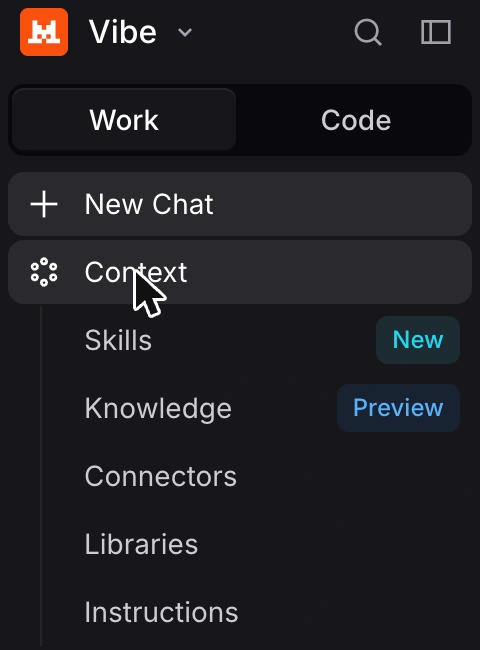
- In Mistral Vibe, open the side panel, then Context > Connectors. Context was previously called Intelligence.
- On the Connectors page, click + Add connector.
 This opens the Marketplace. Click Add a custom connector at the top right.
- In the Add custom connector side panel, fill in Connector name. Mistral accepts no spaces or special characters, so use TracyAtQode. The description is optional. In the Server field, paste the server address for Tracy at Qode:After you paste the address, Authentication auto-detects as OAuth2.1 and the Tracy icon appears.
https://tracyinterview.ai/mcp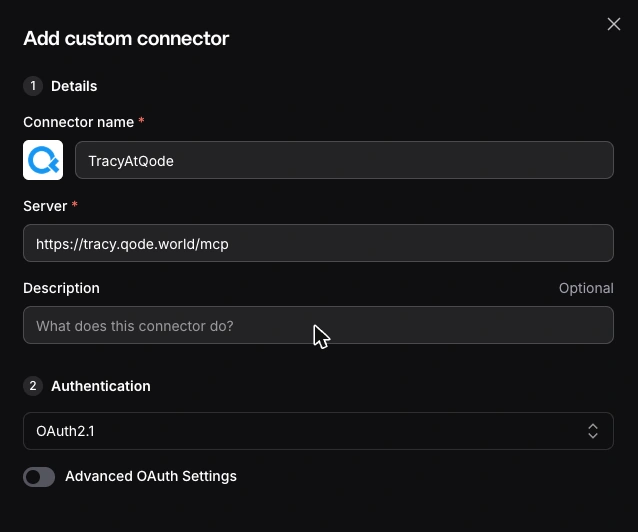
- Click Add connector at the bottom of the panel. If Mistral opens a sign-in window, finish it there.
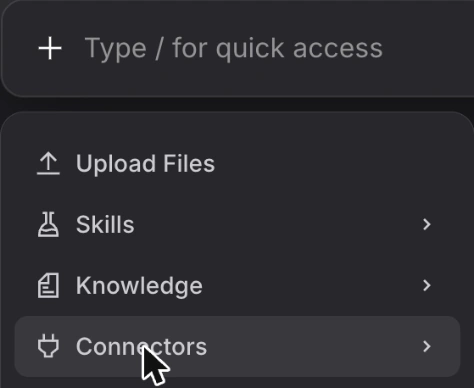
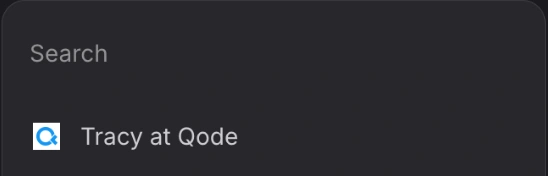
- In a new chat, turn the connector on from the plus (+) menu in the chat box: + > Connectors > Tracy at Qode.
Sign in and approve
After you click Add connector, if Mistral opens a sign-in window, finish it there. Sign in to Tracy at Qode and approve access if prompted. It asks for one permission, named tracy, and acts only on your own account. What that covers is on the privacy page.
A first prompt to try
With the connector on, send:
Set up a customer discovery interview for people who cancelled in the last month, then give me the public link.
Check it worked
- Open your Tracy at Qode account and find Connected AI apps. The app is listed, with the time you connected it under Connected.
- On Context > Connectors, TracyAtQode shows a green Connected indicator. In a new chat, open + > Connectors > Tracy at Qode in the chat box and make sure it is enabled.
- Send the first prompt above.
- Tracy at Qode answers with a draft: the title, the questions and the result fields. Nothing is created until you approve the draft, so read it, ask for changes and say yes when it is right.
If it does not work
- Tracy at Qode is not in your connectors. Adding a connector is an admin task. On the Free, Pro and Student plans the account owner is the admin; in a shared workspace, ask a workspace admin to add it with the steps above, under the name TracyAtQode. An admin can also disable a connector for the whole organization, so ask whether it was turned off.
- The sign-in did not open or was not finished. Open Context > Connectors and check TracyAtQode: a green Connected indicator confirms the connection. If it does not show Connected, disconnect it from that page, add it again with the steps above and finish the sign-in if Mistral opens it. If Mistral is not under Connected AI apps in your account, the sign-in was not finished.
- The connector is off in the chat. In the chat box, open + > Connectors > Tracy at Qode, turn it on and send the first prompt again.
- Access was removed. If you revoked Mistral under Connected AI apps, it stopped at once. If TracyAtQode still shows Connected on the Connectors page, disconnect it there, then add it again with the steps above and sign in and approve access once more.
Still stuck? Write to support.
Remove access
To cut Mistral off, open your account, find Connected AI apps and revoke it. It stops at once, and you can connect it again later. To take the connector out of Mistral as well, disconnect it on Context > Connectors. Stuck? Write to support.